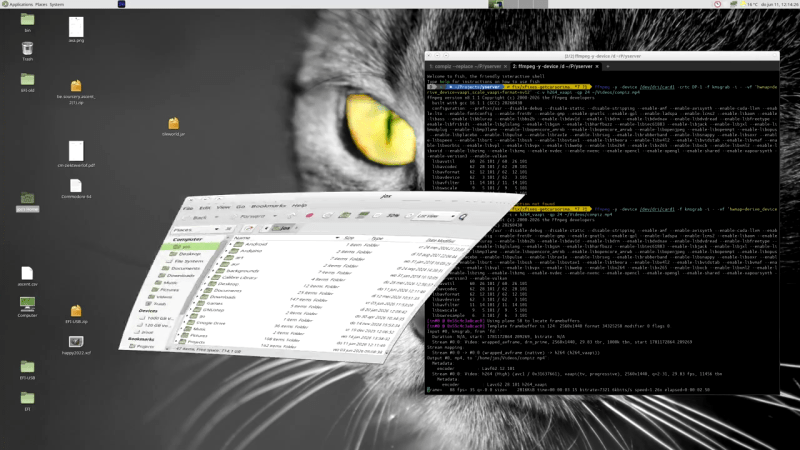
yserver screenshot demonstrating compiz comptibility

Why Not Yserver? It’s Xserver, But Rust-y.

If you’re not into Wayland as a display manager, it seems like your options are slowly dwindling. Xorg isn’t exactly a hotbed of activity, and the one fork everyone knows about is best known as a political lightning rod. Luckily, Rust developers can apparently never see a tool without pulling it into their heavily oxidized bucket of crabs, so we now have another option: the creatively named yserver, released under the MIT license by [joske].

The name, yserver, for the record, is just a placeholder name, but we rather like the simple logic of “Y comes after X” — sure, you could call it X12, but that could imply continuity, and this is a clean break. It’s also not a full reimplementation of the huge, sprawling mess that Xorg has become over the decades. It can’t launch multiple screens and thus lacks full multi-monitor support. So, for now, it may be too bare-bones for some people’s use cases.

As it uses Vulkan, it is limited to relatively modern hardware, but has been tested on Intel, AMD, Nvidia, and Apple chips. The target kernel is good old Linux, but the docs do cover compiling for FreeBSD; just be aware that that’s very much a secondary target. FreeBSD users are probably used to that, though.

On Linux, a standalone DRM/KMS yserver can successfully run not just window managers but full desktops — specifically MATE, Cinnamon, and XFCE, as they’re not on the Wayland bandwagon. It even supports Compiz, in case you missed the cube and wiggly window animations. You can also use yserver via Xwayland or even Xorg. Speaking of Xorg, [joske] has run the X.Org X Test Suite (xts5) against this proposed successor, and it currently scores 66.2%, which seems pretty good considering the project explicitly does not plan to copy all of Xorg’s functionality.

Aside from multiple screens, one thing that would have been neat to see is support for the Asterinas rust-based Linux-compatible kernel — though if that project achieves full Linux compatibility, that may be a non-issue. Even if you aren’t an oxidization enthusiast, you might find reasons to be happy to see more competition in the display-manager market — after all, Wayland Will Never Be Ready For Every X11 User. If Xorg really is destined to the slow death critics predict, perhaps yserver could cover the holdouts.

Custom FM Radio Station Powered By Shell Scripts

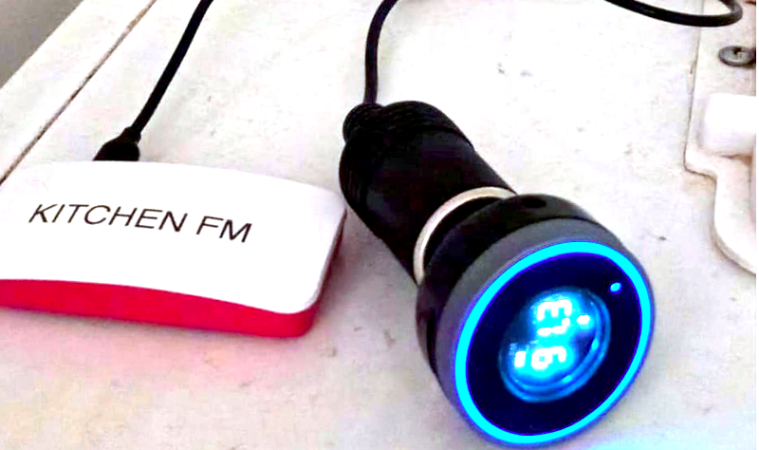
[Trwmato] wanted to spend more time listening to a normal radio to cut back on phone use. But the programming wasn’t quite right so, of course, the solution was to spin up a custom radio station!

The station in question uses a Pi Zero to poll podcasts and news from RSS feeds and automatically mixes them with local content and sends it out via Bluetooth. An FM transmitter allows it to still work on the FM radio, too. Grabbing podcasts isn’t very difficult, thanks to podget. The real logic is in how long to retain things and creating a playlist that both prioritizes fresh content while not repeating things too often. Did we forget to mention the whole thing is a collection of shell scripts?

We could see this as the start of a cool project to have a “radio station” for a school, organization, or company. It is easy to understand and modify.

We often argue that the much-maligned bash script is sometimes the right tool for the job. You can even do things like critical sections in them.

Linux Fu: Fake Webcams, GUI Edition

Previously, I looked at using the Linux video loopback system from the command line. The basic trick was simple enough: capture video from a real camera, process it with something like ffmpeg, and write the result to a fake camera device via the v4l2loopback device. Then a browser, or any camera-enabled software, sees the fake camera as if it were real. This allows you to manipulate video before sending it to the rest of the world.

That works, and for those of us who like command lines, it’s easy enough to execute. But not everyone loves the command line. In the comments, there was another obvious answer: use OBS Studio.

While OBS is excellent, it is also a bit like using a laser to chop a carrot. If you already use OBS, fine. If you only want to crop a webcam, add an effect, mirror an image, or feed a virtual camera, it can feel like a lot. If you must have a GUI, you can try Webcamoid, which sits somewhere between a simple webcam viewer and a full video production system.

Webcamoid gives you a GUI for selecting a camera, applying effects, and sending the result to a virtual camera. Conceptually, it is much closer to the command-line loopback setup from the previous post than to OBS. You are still building a pipeline from input camera to output camera, but now you can do much of it with buttons and menus instead of shell commands.

That’s in theory, of course. Implementing Webcamoid turned out to be quite the exercise. Granted, this probably varies depending on where you install software. If your distro has a clean working copy of Webcamoid and its dependencies, good for you. For everyone else, keep reading.

Continue reading “Linux Fu: Fake Webcams, GUI Edition”

Linux Fu: Taming Strace

While many operating systems seem to try to prevent you from peeking under the hood, Unix and Linux positively encourage it. One great tool that we’ve looked at before is strace. Using this tool, you can see details about every system call a program makes. As you might imagine, for any significant program, the output from strace can be huge.

While I’m not always a fan of GUIs, this is one of those cases where making the data easier to browse is a great idea. Enter strace-tui, a text-based GUI for strace from [Rodrigodd]. The program can parse output from strace or manage the strace execution itself, and either way, display the data in a useful way.

I started out looking at [janestreet’s] strace_ui, but the OCaml setup was throwing errors for me, so I just gave up. The strace-tui installs like many Rust programs, using cargo, and it went smoothly.

Continue reading “Linux Fu: Taming Strace”

Linux Fu: Fake Webcams Have Many Uses

Dealing with text streams is a fundamental skill for the Linux power user. You can sort, merge, and search text files easily from the command line. What if you could do the same thing with video? Well, you can. Maybe you want to add a logo to a webcam feed before sending it to a conference app. Maybe you want to blur, color-correct, or annotate video in real time. Or perhaps you want to inject prerecorded video into Zoom while pretending it is a live camera. Linux can do all of this, and the key ingredient is usually the same: a loopback video device.

The basic idea is simple. Instead of an application reading directly from /dev/video0, you create a fake camera device using the v4l2loopback kernel module. Your software pipeline writes processed video into the fake camera, and applications read from it as if it were a normal webcam. The result is surprisingly powerful.

Continue reading “Linux Fu: Fake Webcams Have Many Uses”

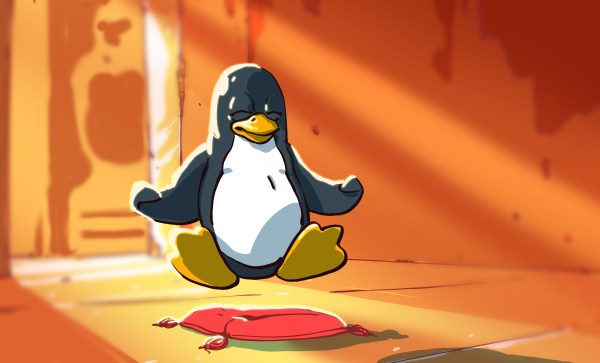
Linux Distributions And Who Is Responsible For The Software

The topic of downstream and upstream is an important one in the Linux ecosystem, where from one base distribution you can go many layers of distros deep before even looking at all the other base distributions. Within that veritable jungle you get questions about who is responsible for packaging software, where to report bugs found with a specific application, as well as what ‘LTS’ truly means in a consumer context. These and other points are raised in a recent video by [Brodie Robertson], with many examples of things going tragically wrong.

There’s a good argument to be made that ultimately it is the distro that is responsible for the software that they provide via their repositories. As [Brodie] shows in the video, there are a few cases where an ‘LTS’ distro uses an old version of some software that contains a bug that has been fixed a while ago, so reporting it to the developer is rather pointless, while the distro maintainers should fix it with backporting of patches or updating the version.

From an end user experience this also makes the most sense, as in the end they just want to have the Windows experience of downloading a proverbial installer, clicking through whatever dialogs pop and have working software. If the software is provided via the distro, it is their responsibility, the same way that you contact the developer if you get a DEB or RPM from a GitHub project page and it doesn’t work.

This current Linux Chaos Vortex can be called a major issue when e.g. FreeBSD has no such upstream/downstream issues, with cross-platform installers being basically impossible on Linux ever since the Linux Standard Base effort died.

Perhaps Linux will get a distroless future, however, which may finally herald that Year of the Linux Desktop.

Continue reading “Linux Distributions And Who Is Responsible For The Software”

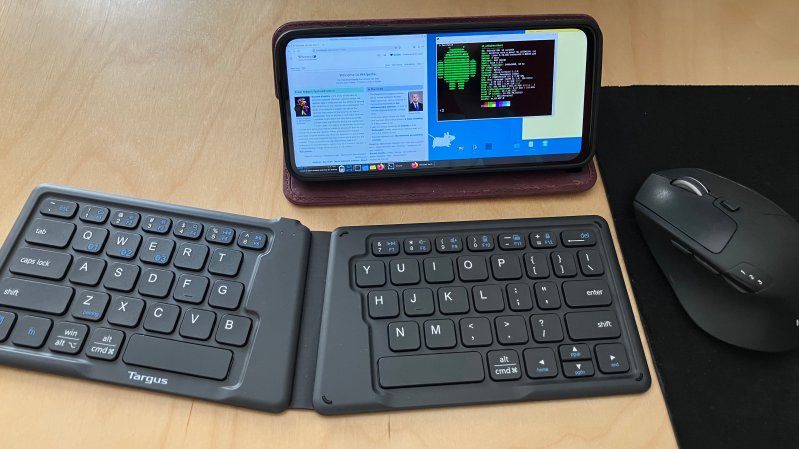
A phone running the XFCE desktop environment is placed on a desk, with a wireless keyboard in front of it.

Linux On Android Provides Inexpensive, Powerful Computing

In some parts of the world it’s common for cell service providers to sell new phones at a price significantly below market value, with the caveat that these phones are locked to that service provider alone. It’s questionable whether this practice is good for consumers, but as [Gabriel Broussard Korr] notes, it’s an opportunity for hackers: since it’s possible to run a Linux environment on these phones, they make an inexpensive source of quite powerful computing hardware.

In this case, [Gabriel] was using the Moto G Power 2024, which has 128 GB of storage, 12 GB of RAM, and costs less than $50 when carrier-locked. Rather than trying to install a mobile-oriented Linux distribution (such as postmarketOS), [Gabriel] installed Termux, a terminal emulator which provides a Linux environment within Android. Before doing this, he set up the phone and configured a number of settings for a better Linux experience. Since automatic updates can interfere with these settings, and since none of the provided settings effectively disable these, he used NetGuard to block Internet access from the updater app and from Google Play services.

The next step was to actually install Termux, as well as an X11 extension and an app which exposes an API for Termux. The desktop environment (XFCE in this case) was installed through Termux, and [Gabriel] wrote a shell script to go through the steps of starting it. XFCE worked well on mobile devices because of its full-desktop zoom capability. Even running Linux indirectly, the experience was smooth; [Gabriel] found that GIMP, Shotcut, and VS Code all performed well.

It’s not quite the same set of software, but we’ve previously featured a guide to setting up a similar Linux environment using Termux and AnLinux. Lindroid provides a similar containerized Linux environment; on the other hand, you can also use postmarketOS to make a server from an old phone.